> ## Documentation Index
> Fetch the complete documentation index at: https://docs.trugen.ai/llms.txt
> Use this file to discover all available pages before exploring further.
# Bring Your Own LLM
> Connect any OpenAI-compatible LLM to your TruGen agents — self-hosted, fine-tuned, or third-party.
TruGen lets you replace the default LLM with any **OpenAI-compatible API**. This means you can use self-hosted models, fine-tuned models trained on your own data, or third-party providers — while keeping the rest of the avatar and agent stack intact.
## Why Use a Custom LLM?
| Benefit | Description |
| ----------------- | ------------------------------------------------------------------------------ |
| **Customisation** | Use domain-specific or fine-tuned models for better accuracy in your vertical |
| **Data Privacy** | Keep sensitive data within your own infrastructure or private cloud |
| **Compliance** | Meet strict regulatory requirements around data residency and auditing |
| **Cost Control** | Optimise expenses by choosing competitive providers or using your own hardware |
## Requirements
Your LLM API must implement the **OpenAI Chat Completions** specification:
* **Endpoint:** `POST /chat/completions`
* **Payload:** Must accept a `messages: []` array
* **Streaming:** Must support Server-Sent Events (SSE) for real-time interaction
**Optional** — required only for specific features:
* **Function Calling** — needed if your agent uses tools
* **Vision** — needed for multimodal inputs
## Setup Options
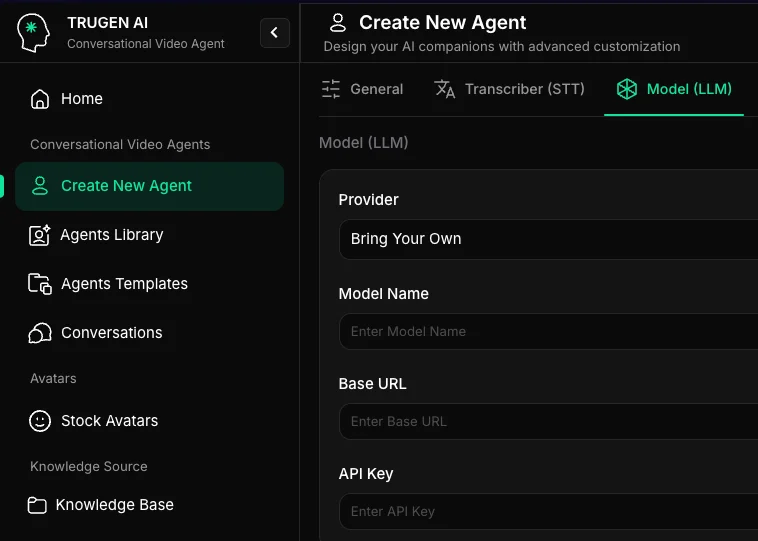
### Via Developer Studio
1. Navigate to **Create New Agent**.
2. Find the **Agent Config** section.
3. Select **Bring your own LLM** from the Provider dropdown.
4. Enter your **API URL**, **Model Name**, and **API Token**.
 ### Via API
Set `provider` to `"custom"` within the `avatars.config.llm` object:
```bash Create Agent with Custom LLM theme={null}
curl --request POST \
--url https://api.trugen.ai/v1/ext/agent \
--header 'Content-Type: application/json' \
--header 'x-api-key: YOUR_API_KEY' \
--data @- <
## What's Next?
Browse all built-in models across Groq, Azure OpenAI, Google, and more.
Write effective system prompts for your custom LLM.
### Via API
Set `provider` to `"custom"` within the `avatars.config.llm` object:
```bash Create Agent with Custom LLM theme={null}
curl --request POST \
--url https://api.trugen.ai/v1/ext/agent \
--header 'Content-Type: application/json' \
--header 'x-api-key: YOUR_API_KEY' \
--data @- <
## What's Next?
Browse all built-in models across Groq, Azure OpenAI, Google, and more.
Write effective system prompts for your custom LLM.